A little less frustration. A clearer next step.

Why Is My
Wi-Fi Slow?

Slow Wi-Fi can come from a weak wireless signal, several devices sharing the connection, a problem with one device or website, or your internet service. Start with the checks below to narrow it down.

Let’s start with the basics

Start here

Try This First

A quick look at three checks from the book. The complete six-step section is below.

  • Try another website.

    Try more than one website. If only one is slow, that website may be the issue.

  • Compare another device.

    Check whether another device on the same home network is slow, too.

  • Try closer to the router.

    If you're using Wi-Fi, compare the connection near the router with the connection farther away. If you can safely connect by cable, that test may help pinpoint a weak wireless signal.

Still slow? Work through the steps below. You can stop when things are working again.

From the book · Pages 26–27

My Internet Is Running Slowly

If only one website is slow, your internet connection may be fine.

1

Is It Just One Website?

Try more than one website. If only one is slow, that website may be the issue.

2

Is It Just One Device?

Check whether another device on the same home network is slow, too.

3

Is Something Using the Connection?

Close large downloads, streaming video or automatic online copies of your files temporarily and see whether speed improves.

4

Restart Your Modem and Router

Restart your computer. If multiple devices are affected, restart the modem and router.

5

Is Wi-Fi Better Near the Router?

If you're using Wi-Fi, compare the connection near the router with the connection farther away. If you can safely connect by cable, that test may help pinpoint a weak wireless signal.

6

Check Your Internet Speed

Run a speed test offered by your provider or another reputable service. Compare the result with the internet speed listed on your bill or service plan, if you can find it. Remember that Wi-Fi can be slower than a wired connection. If you don't know the speed you're paying for, ask your internet provider.

When to get help

When to Call Your Internet Provider

If slow speeds persist on several devices, contact the provider with the test results and time of day.
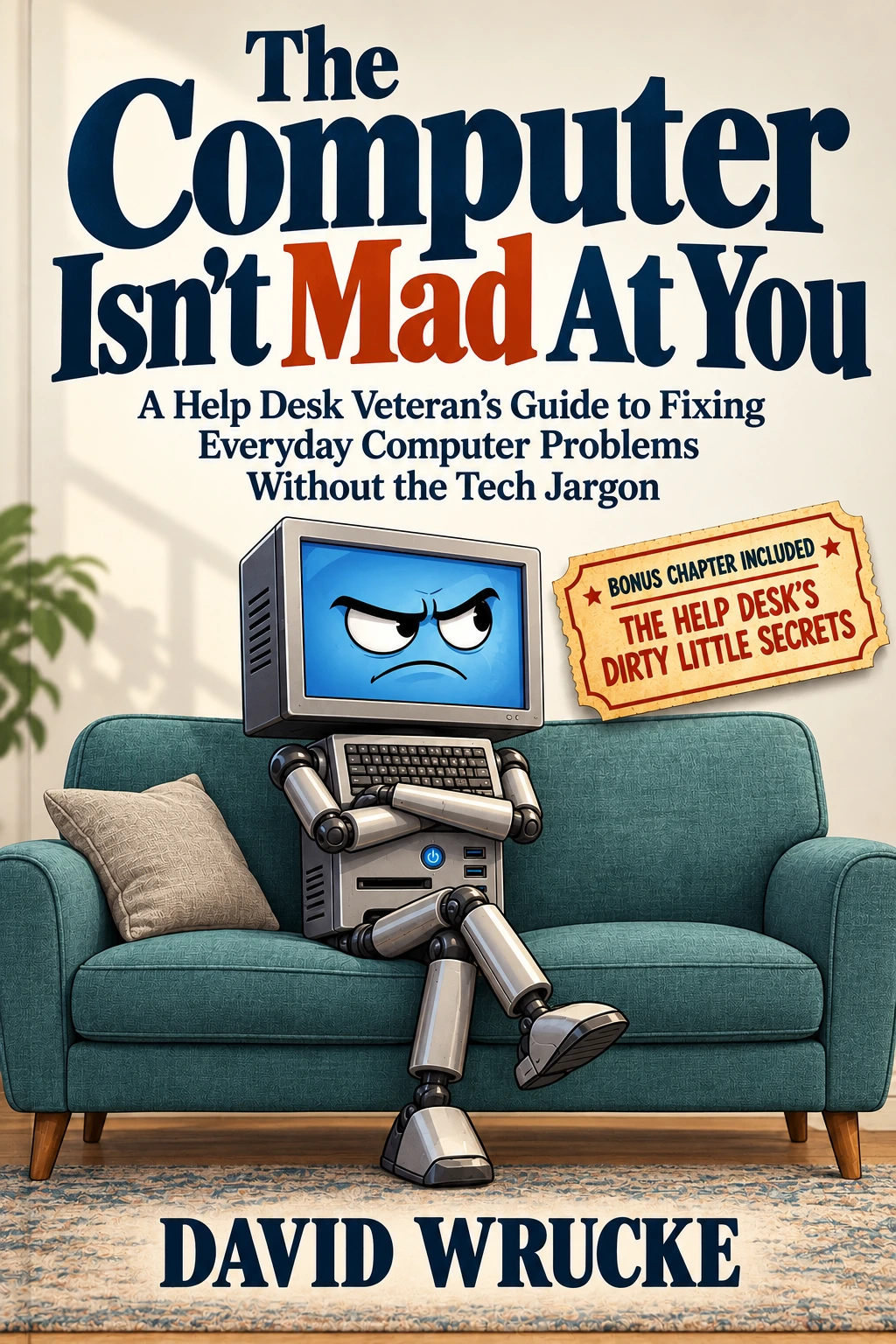
The Computer Isn't Mad at You book cover by David Wrucke

More help. Same plain English.

The computer isn’t
mad at you.

A Help Desk Veteran’s Guide to Fixing Everyday Computer Problems Without the Tech Jargon

David Wrucke brings more than 15 years of IT and help desk experience to instructions written for everyday computer users.

The six steps above are taken directly from his book. The book goes further, with help for black screens, printers, passwords, email, scams, and more, plus a problem directory, illustrated equipment guide, and plain-English dictionary.

There’s also a bonus chapter: The Help Desk’s Dirty Little Secrets.

Also available through

Retailer prices, availability, and delivery dates vary.

About this guide

The six numbered instructions and closing advice reproduce “My Internet Is Running Slowly,” printed pages 26–27 of The Computer Isn’t Mad at You by David Wrucke. The quick checklist repeats selected instructions from that section. Navigation headings and introductory website text are provided for this page.

Equipment and services vary. Follow your provider’s instructions for your setup. General information only; this site does not offer individual technical support.